[1] 2Lab 1: Introduction to R
R and RStudio?
To start, it’s good to point out that R and RStudio are two different things
R:

RStudio:


What is R?
R (https://www.r-project.org/about.html) is a programming language originally designed for statistical computing and data visualization.
Thanks to the contribution of many users, nowadays R is quite similar to python (https://www.python.org) in what it allows you to do.
There exist many programming languages and some do something better than others.
R works pretty well for data analysis and visualization and that’s why we use it 🤷
What is RStudio?
Whereas R is a programming language, RStudio is an integrated development environment (IDE…a what? 😕)
An IDE is software that facilitates writing code in general. Although RStudio was developed with R in mind, it also supports many other programming languages (e.g., Python, Javascript, C…)
Likewise, you do not need RStudio to use R. However, RStudio is by far the best IDE for coding in R and it makes the process much more efficient!
The people who make RStudio (https://posit.co/download/rstudio-desktop) have no affiliation with the people who make R as far as I know.
RStudio: What Am I looking at?
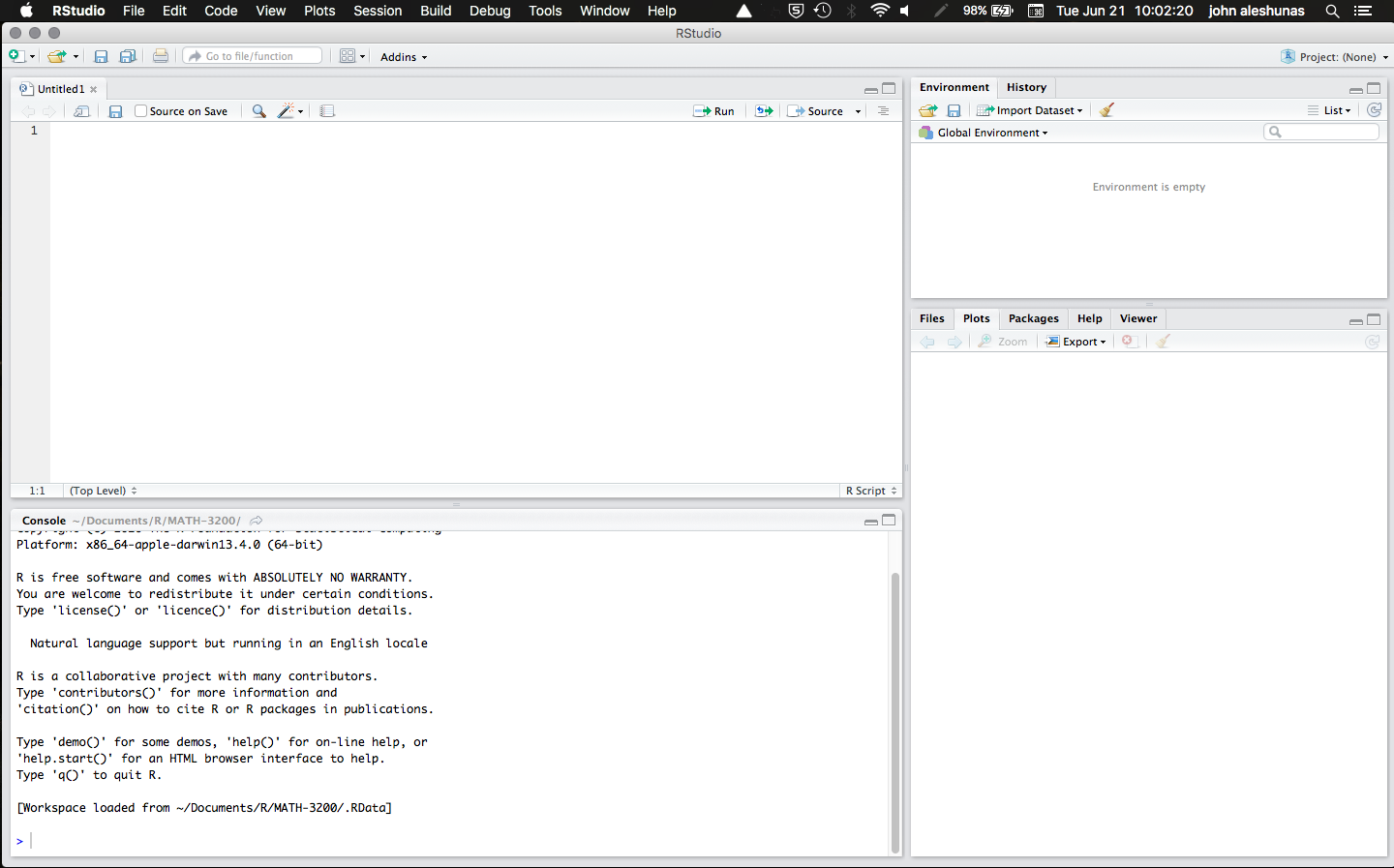
The RStudio interface is divided into 4 panes:
- Source (top-left): This pane is where we will do most of our work. Here is were you can edit and run your code files (scripts).
- Environment (top-right): This is where you can find the objects that are present in the current R session.
- Console (bottom-left): The console is actually R by itself (the R console) and it is how RStudio runs R. You will find output, messages, and warnings here.*
- Viewer (bottom-right): This is a bit of a catch-all pane. Here, you will find plots, installed packages, help for functions, and your computer folders (under files)
(You can customize where your panes are. I usually swap the position of the console and environment)
More about the “Console”
You can actually write and run code directly in the console, but you cannot save your code (which you should always do!). When you run your code from the Source pane, RStudio sends it to the console to be interpreted. All computer code is just plain text; what you need to run code of a certain computer language is to have something that interprets it and runs it. The R console is what interprets and runs your code (Hence why you need to have R on your computer to use R in RStudio)
Creating an R Script
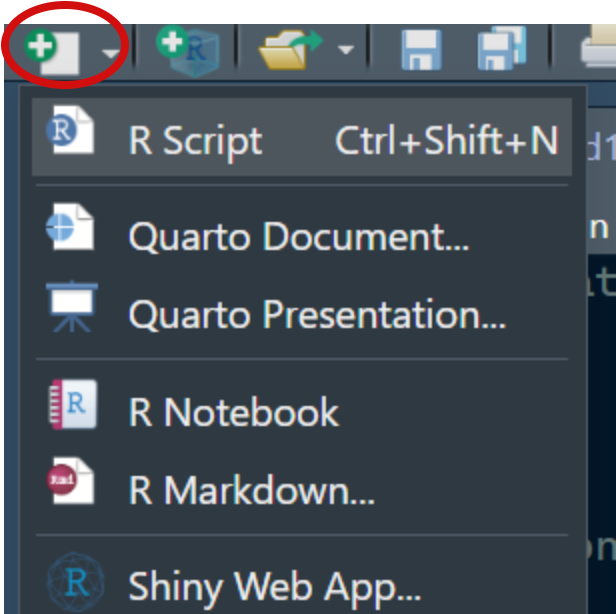
Before we can do any coding, we need to open a new R script! You can open a new R script by following the steps in the image on the right, or by using pressing Crtl + Shift + N (Windows) or Cmd + Shift + N.
A tab named “Untitled1” will appear in your source pane. This is where we are going to write code for today!
As any other file, you can later save this file anywhere on your computer. It will have the .R extension.
Running Code and Mathematical Operations
R can perform just about any mathematical operation. At the same time, let’s see how to run some code:
In RStudio, you can either run one or more line of code at once, or run the whole R script file at once.
- One or more lines: highlight the lines that you want to run and press Ctrl + Enter (Windows) or Cmd + Return (Mac)
- Entire Script: press Ctrl + Shift + Enter (Windows) or Cmd + Shift + Return (Mac).
The  button will also run the next runnable line of code with respect to your cursor.
# some basic math operations

# addition
1 + 3

# multiplication
3*7

# exponents
2^3
Output
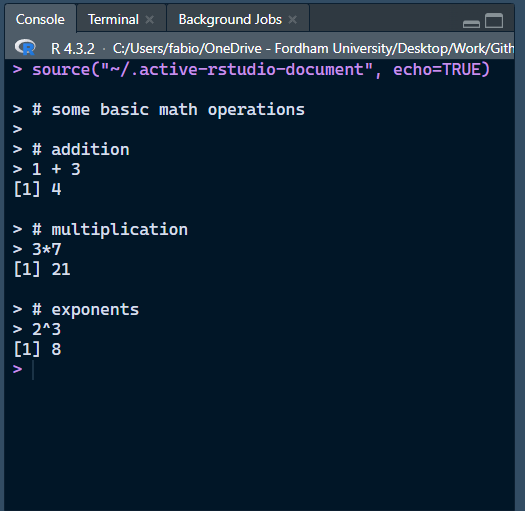
You will see your code with output appear in the console.
Output is indicated by “[n]”, where n represents the line of the output.
Here we only have one line for output each of our inputs (the 3 math operations), but you can have more lines.
The # sign represents comments. R will not run commented lines. Comments are good for explaining code to other people reading your code, and more importantly…to the future you!
Objects
Just as many other programming languages, R is object-oriented. You can think of objects as containers where information is stored (very important concept to remember).
To create an object in R, you use “<” + “-”, known as the assignment operator:
# This means x "is" (4 +5)*2. you can name objects whatever you want but the name cannot begin with a number or include special characters (?, !, etc...).

x <- (4 +5)*2
The keyboard shortcut for the assignment operator is alt + - (Win) or Option + - (Mac).
No output is produced. However, you will now see the x object appear in your environment!
R now knows that whenever you write x in your code, you mean 18.
x + 3[1] 21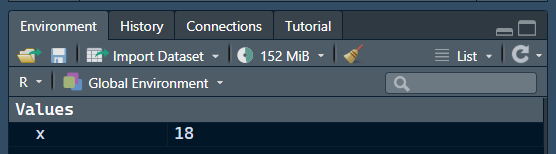
The Help Menu
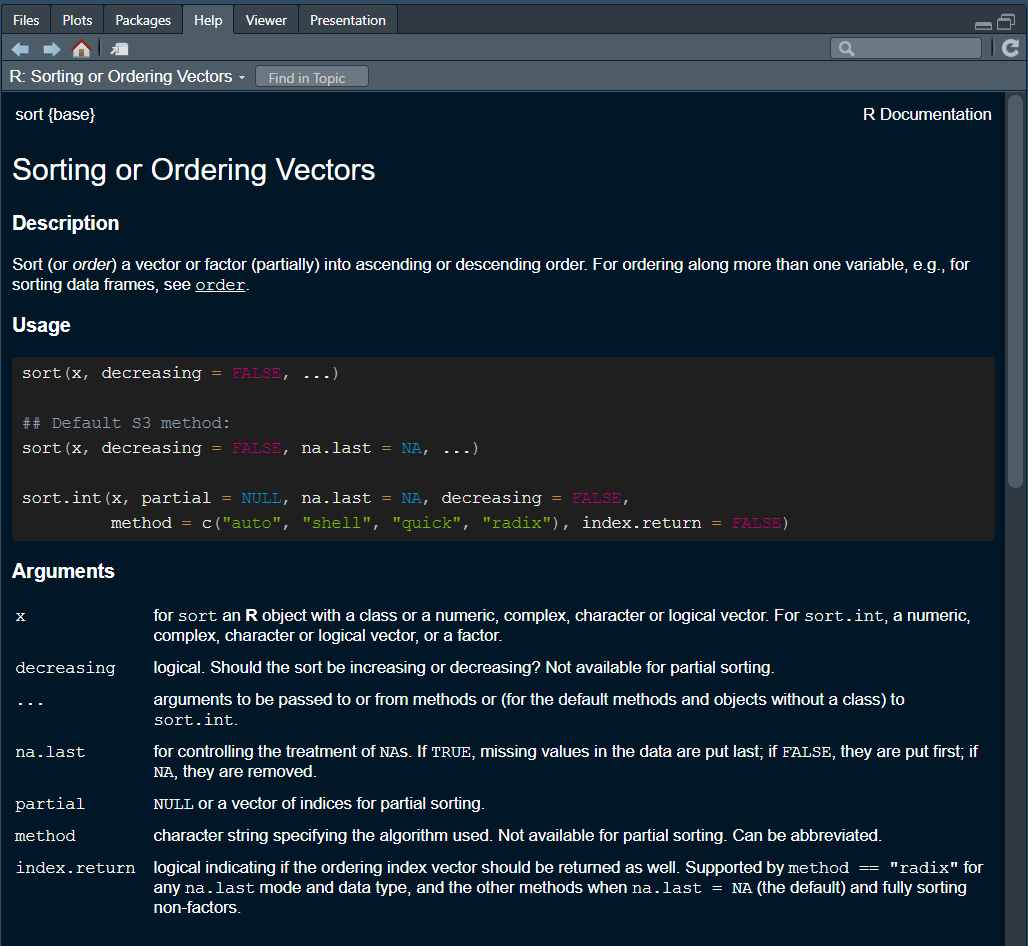
Let’s say I ask Google for an R function that sorts vectors and I find the sort() function!…But how do I know about its arguments? How do I know whether it sorts in ascending or descending order by default? How do I know that the function does what I need? 🤔
# run the empty function with "?" in front of it to open it's help menu
?sort()
# Alternatively you can also highlight or hover over the function (just the function, not the "()") and press F1.- Description: Brief description of that the function does.
- Usage: Shows default values of arguments (i.e., “decreasing” is set to FALSE unless you say otherwise).
- Arguments: all the function arguments and what each one does!
There’s much more going on here, but notice the {base} after the name of the function. That is the package the function comes from 🧐
Packages
Usually, the base R functions are not enough for most of the tasks that one needs to accomplish in R. Often people have to create their own custom functions.
A package is simply a collection of functions that other users make for everyone out of the kindness of their heart 🤗
Let’s install a package that makes opening data in R very smooth, the rio package (Becker et al., 2024):
# This is how you install packages from CRAN (explained below)
install.packages("rio")
The install.packages() function installs packages from the comprehensive R archive network (CRAN). Among other things, CRAN maintains a library of packages made by users.
The process to get a package on CRAN is a bit lengthy (and sometimes packages get removed), so some people just upload their packages to Github.
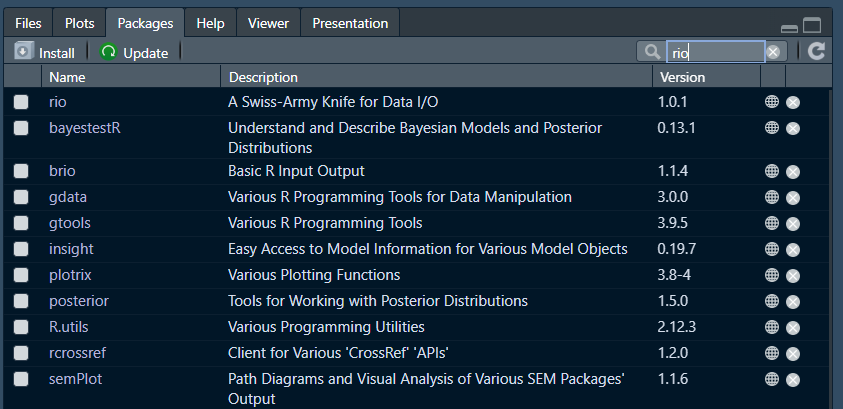
To see all of the packages installed in your RStudio, you can navigate to your viewer pane and select “packages”.
But wait! One last thing 🫣
Reporting With Quarto!

What is Quarto?
Quarto is an “open-source scientific and technical publishing system”. As mentioned on their main page, with quarto, you can:
- Create documents and easily publish them online for everyone to access.
- Publish reproducible, production quality articles, presentations (e.g., these slides!), dashboards, websites, blogs, and books in HTML, PDF, MS Word, ePub, and more.
Overall I am a big fan of quarto because it fosters accessibility, reproducibility, and transparency 😀
Opening a quarto file
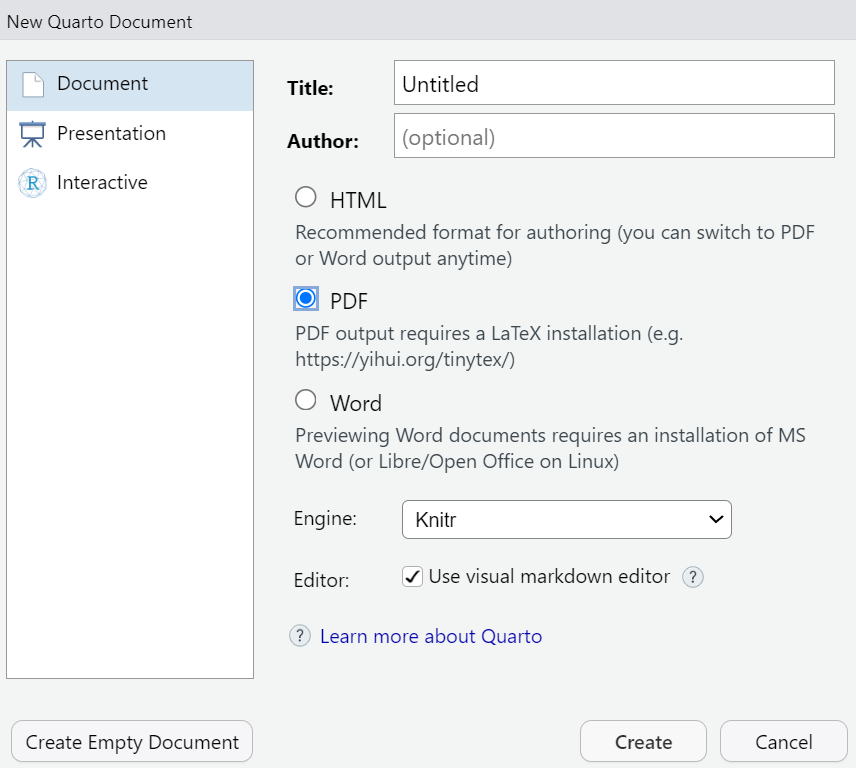
quarto files have the .qmd extension. We can open a .qmd file by clicking file → new file → quarto document. You should see the window on right appear. Make sure you select PDF.
Note the Use visual markdown editor check-box. Once you create the document you will have the option to switch between the visual and source editor:
- Source editor: The file will look like a plain code file. (I much prefer to use this)
- Visual editor: The file will look more like a word doc and you will have some point-and-click shortcuts to edit text. This is more user friendly, although it can get a bit clunky.
Click on Create to create a .qmd document, which will already have some instructions in it.
Creating a PDF
Now you can click on Render at the top of the document; you will be asked to save the .qmd file. After you do, you will see a .pdf file appear where you saved your .qmd file.
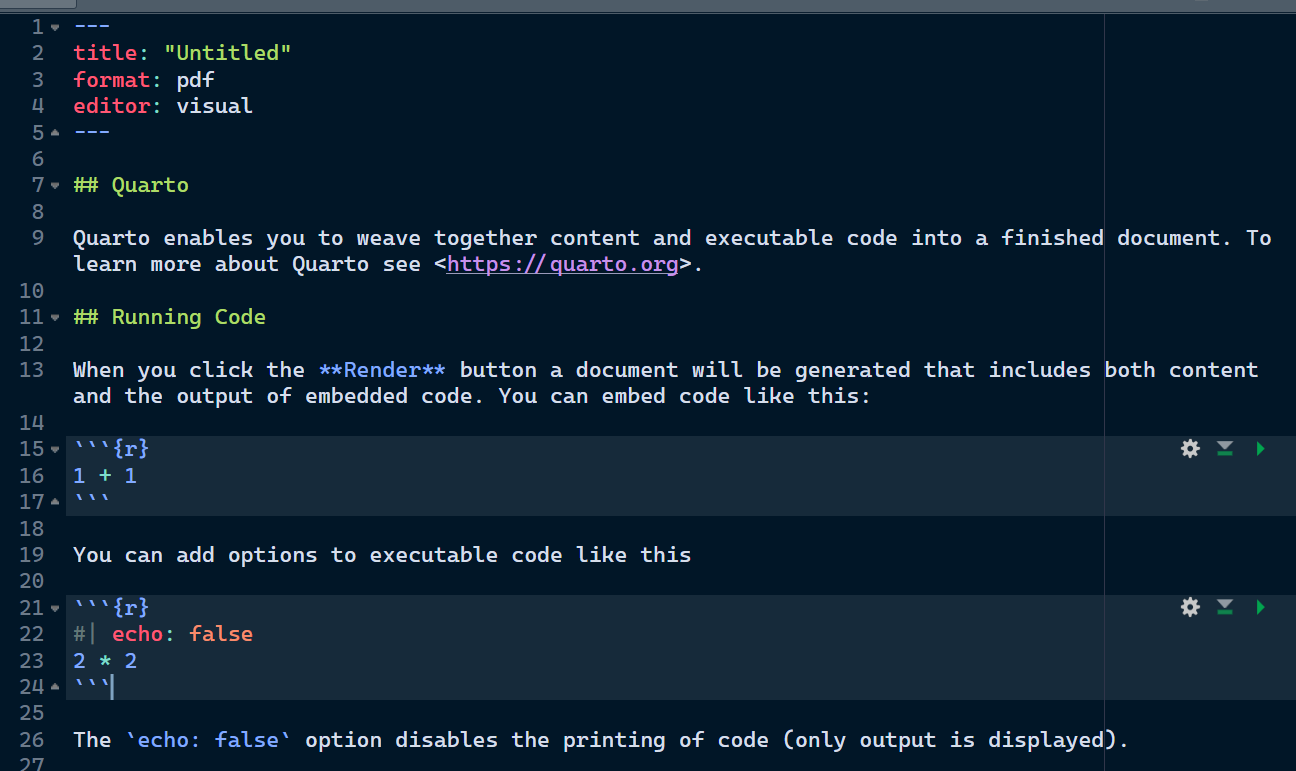
This is what the .qmd file looks like from the source editor view:
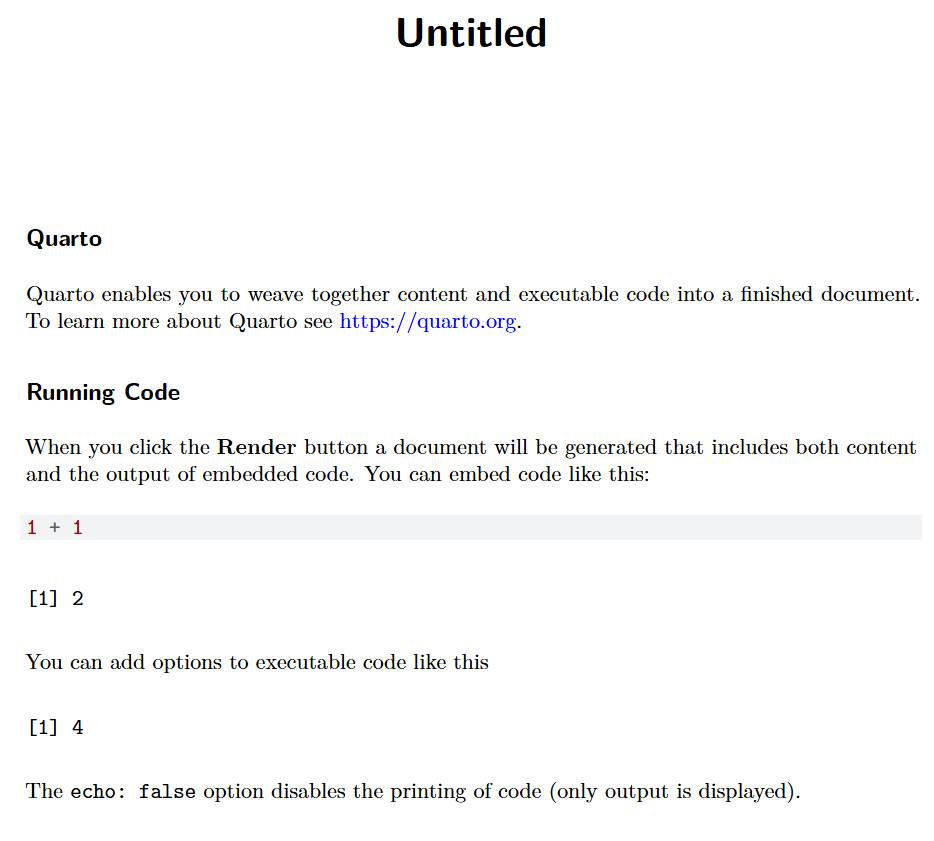
The PDF file output: